
What to Look for in the Best Free Online AI Photo Editor
A few years ago, fixing a photo meant learning layers, masks, and endless menus. Now you can open a browser, type one sentence, and get a result in seconds. No wonder people search for a free AI photo editor online so often. It has become one more easy screen habit, like an evening round at thor fortune after a long day. The mood may differ, but the wish is the same: something simple that respects your time. So what makes an editor truly useful?
From Sliders to Sentences: How Photo Editing Changed
Classic editors make you think like a technician. You choose a tool, set a brush size, soften an edge, and hope the light still matches at the end. AI editors turn this around. You say what you want, and the software finds the steps. A beginner can now replace a grey sky with a sunset or remove a messy background in one request.
That does not make skill useless. It changes where the skill lives. Good results come from good words, so light, mood, and the position of your subject matter more than any menu. Komposer AI follows this idea. Using it feels more like a chat than a class.
Why the browser matters
A browser editor skips the installation. You download nothing, you wait for no updates, and your computer does not need extra power. You open a page, upload a picture, and begin. If you edit photos once a week instead of every day, this ease often decides which tool you keep. It also means you can start on a laptop at home and finish on another device later, with no files to move around.
What Separates the Best AI Photo Editor From the Rest
Before you spend time on a tool, test it against a few simple points. The table below shows what to check first and what a good answer looks like.
| Criterion | Why it matters | What good looks like |
|---|---|---|
| Ease of start | Setup friction makes people quit early | Upload and edit within a minute |
| Result quality | Edits should look natural, not pasted in | Matching light, shadows, and perspective |
| Subject consistency | Faces and details should survive the edit | The person still looks like themselves |
| Clear limits | Free rarely means unlimited | Credit costs shown before you commit |
Look closely at the last row. Most free services use credits or daily limits, and that is fine when they say so openly. Komposer shows the credit cost on the generate button before you click it. That kind of honesty is what you want from any free online AI photo editor.
Trust also grows from small things. A good tool names the file formats it accepts. It shows progress while your image processes. It does not hide key details until you sign up.
A good editor should feel like a helpful assistant, not a puzzle you solve before you begin.
Some warning signs appear within the first minute on a new site:
- The site demands registration before showing any sample result
- Usage limits are vague or hidden in fine print
- A watermark shows up only after you download
- Queues run long and give no time estimate
- Faces change so much that the subject looks like a stranger
- The site never lists the supported file formats
A First Session With Komposer
Komposer keeps the start simple. Upload a JPG, PNG, or WEBP file, describe the change in the text box, pick an aspect ratio, and press generate. A task list on the same page tracks your jobs. You can leave one running while you prepare the next. You need no special vocabulary to begin.
A few habits make your first session smoother:
- Begin with a sharp photo in good natural light
- Pick the aspect ratio that fits the final use
- Ask for one change per prompt, not five
- Name the subject, the setting, and the mood
- Compare the result with your original before you accept it
- Adjust with a follow-up prompt instead of restarting
Prompts that work
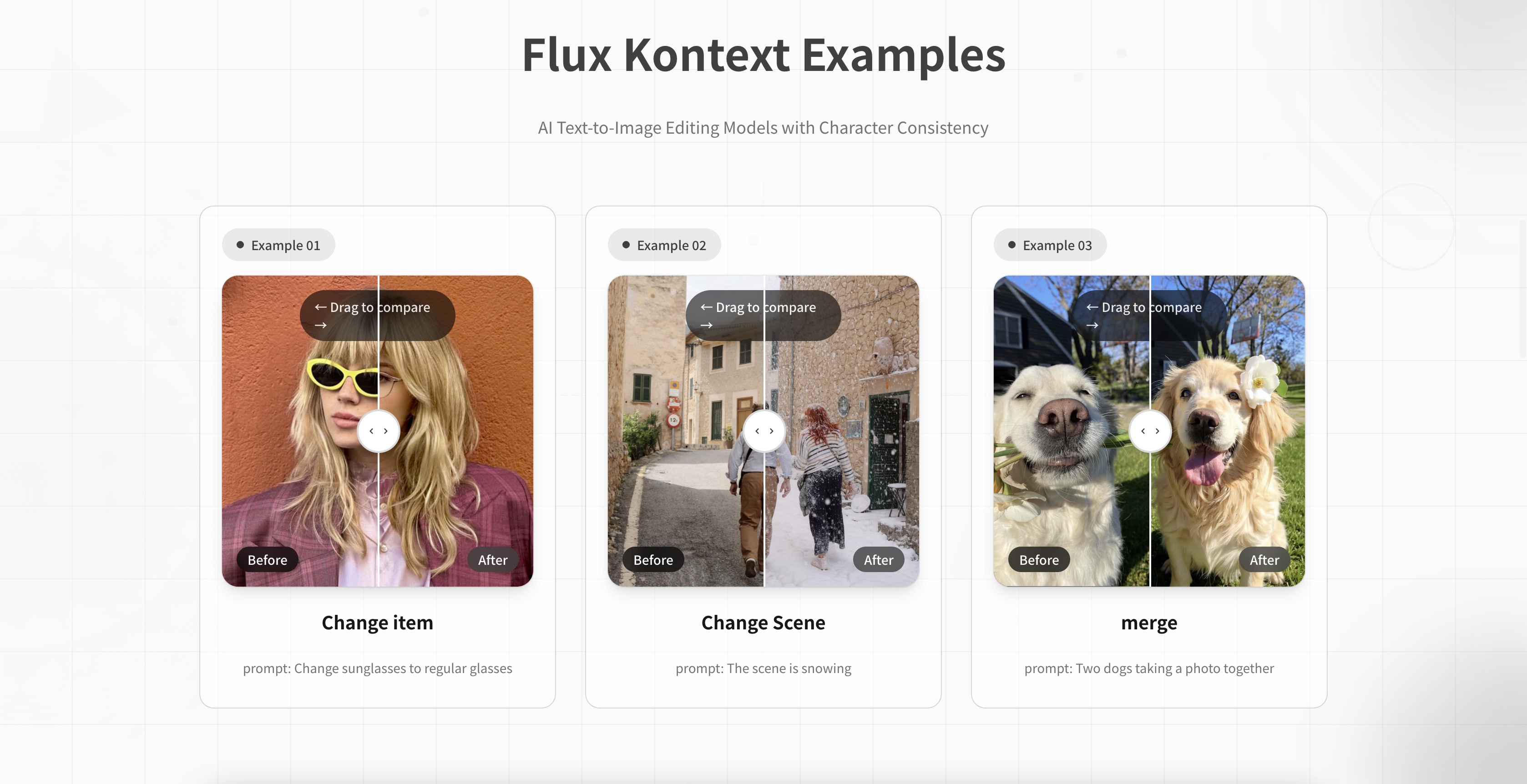
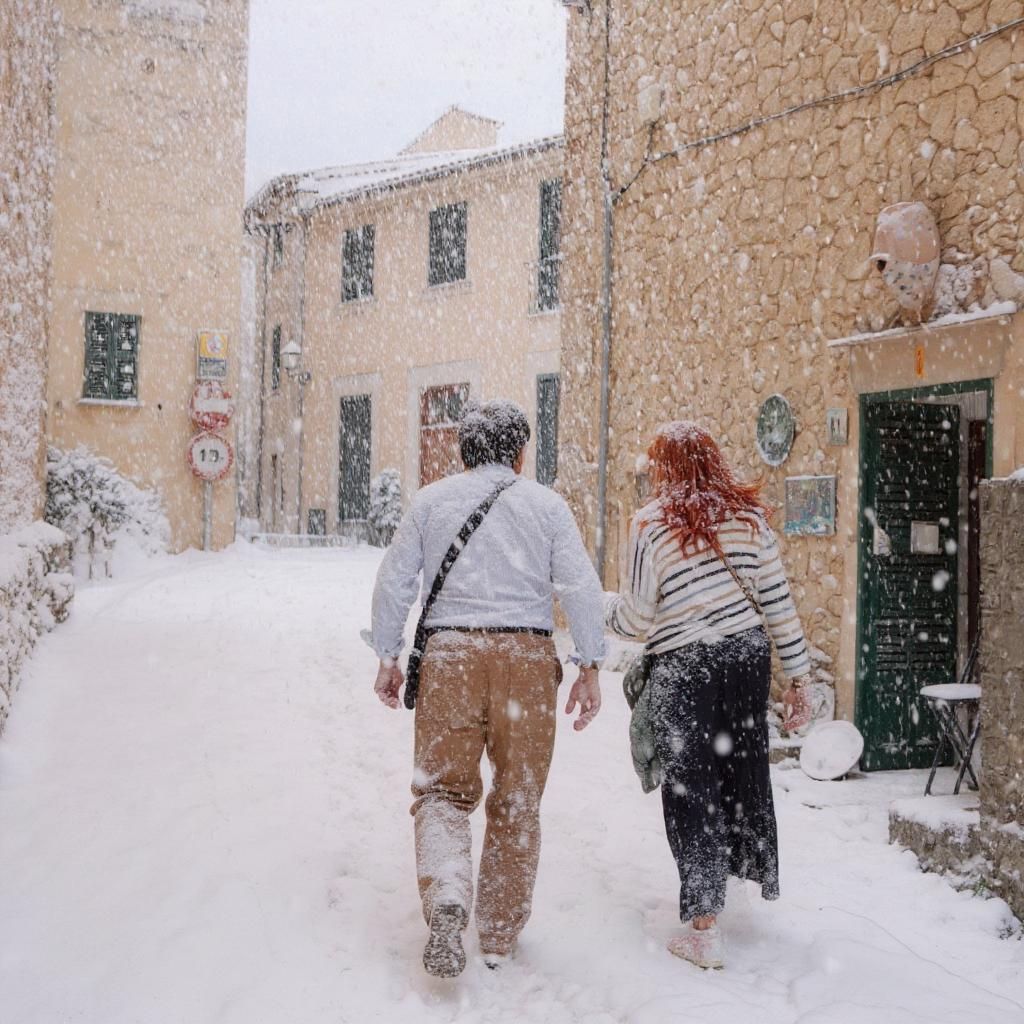
The homepage examples are modest on purpose: change sunglasses to regular glasses, make the scene snowy, put two dogs in one photo. Short, concrete requests leave the model little room to wander. They are also easier to adjust when the first try is close but not perfect.
Where Komposer AI Fits in Everyday Editing
Most photos that need work fall into a few groups. The table below matches each common job with a sample prompt and a quick check for the result.
| Job | Example prompt | What to check afterward |
|---|---|---|
| Small object change | Change sunglasses to regular glasses | Edges and reflections |
| Scene change | The scene is snowing | Consistent light and shadows |
| Merging subjects | Two dogs taking a photo together | Proportions and overlap |
| New location | Now sitting in a bar and enjoying a beer | Perspective and mood |
None of these jobs requires a design background. You only need patience for a second attempt. The first result often shows you how to word a better prompt, and that simple habit separates casual users from people who get steady results.
Komposer also suits people who value control. You choose which pictures to upload, you see the cost of each generation, and you decide when an image is done. Nobody rushes you toward a result you do not like, and that calm pace is a quiet strength.
Keeping Creative Time Enjoyable
For many people, photo editing is a hobby, and hobbies work best when they stay light. Set a small goal, such as improving three pictures from last weekend. Then close the tab. Go for a walk, or enjoy whatever other entertainment you like.
The tool is only half of the craft. The other half is knowing when the picture is done.
Picking the best AI photo editor comes down to three basics: an easy start, natural results, and clear limits. Test a tool with one photo you care about, such as a family picture or a favourite travel shot, and judge the result calmly. Keep the editor that leaves you with time to spare. It should make your day easier, not longer.